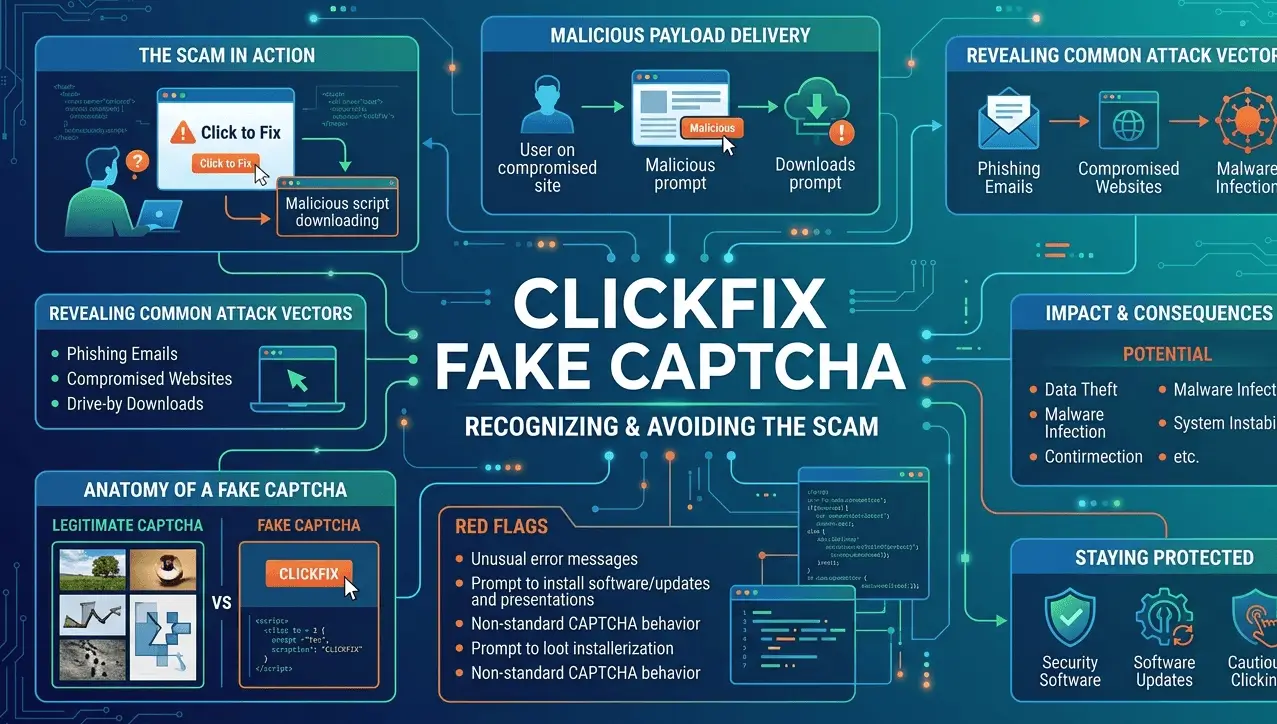
The ClickFix malware targets Mac users with fake CAPTCHAs and system alerts
A new malware campaign targeting Mac users uses fake system errors and CAPTCHA verifications to trick victims into gaining full access to the device. Here's how ClickFix works and what signs may indicate an infection.
What is the ClickFix Malware Campaign for Mac?
The ClickFix malvertising campaign for Mac may have ended, but that does not mean the click-fraud engine used to compromise Mac computers is going away.
Originally a clickjacking technique used to exploit users' browser inertia and make them click on ads by forcing them to press a decoy button to complete a required action, ClickFix was repurposed as a means to distribute infostealers like MacSync, Shub Stealor, and AMOS Stealer, all capable of stealing sensitive data from targeted victims.
The hackers behind ClickFix shifted their strategy from tricking users into downloading potentially harmful software onto Windows computers to targeting macOS users through a different campaign that uses similar social engineering tactics.
In a Verdict blog post, security researchers @MalcolmH at Cyble Security — who have been tracking the development of ClickFix and its original companion tool for Windows, BleedEasy, in a side project called BleedMac — detailed new aspects of the campaign launched from compromised websites.
Identified by the site name as part of an "insecure page", "warning", "alert", or "error message", visitors to these sites may notice a notification or pop-up that says a "system error has occurred", "disk space is full", "temporary file error", or something similar. The user is then guided through step-by-step instructions like "Confirm", "Allow", "Yes", "No", or "Cancel" to resolve the supposed error.
If the visitor clicks the "Allow" option on the pop-up asking if they want to "force restart", the browser opens a web page showing a padlock next to a "Restart Now" button. If the visitor decides not to force a restart, a message appears stating "insufficient disk space", asking them to delete certain folders to free up space. If the visitor deletes some or all of the contents of the "Library/Caches" folder, then they are prompted to restart the computer. If the computer does not restart, the user is instructed to delete the "Caches" folder contained within their "Applications" folder.
According to Cyble researchers, the campaign has been active since April and May 2026, and the two groups identified a total of approximately 2,800 affected websites distributing the ClickFix tool.
How ClickFix and Atomic Stealer Infect Macs
Once a victim visits a compromised or malicious website, the page mimics a browser update by opening one of several pop-ups containing a code to "download the latest version". Upon clicking, the pop-up copies a malicious script to the clipboard, which then must be pasted into a terminal using Cmd+V. At this point, the user has unknowingly approved system-level permissions for the script to execute.
This script uses Base64 encoding to hide its content and then executes a curl command to download an install.sh file from the C2 server, loading the script into memory without triggering Gatekeeper checks.
Then, the script asks for the user's root password: "Please enter System Password:" — repeating the prompt until a password is entered. This gives the malware broad access to the system. After entering the password, the script creates a log file in /var/tmp and executes an AppleScript that opens a pre-filled Script Editor document containing the Atomic Stealer malware.
Atomic Stealer then places its modules in /usr/local/lib, establishes persistence by creating an alias to launchservices.db in /Library and ~/Library, and initializes its core components through a hidden application that exploits multiple Apple frameworks to maintain a persistent connection with the C2 server.
Step by Step: How the Fake reCAPTCHA Attack Works
This attack replaces Google's reCAPTCHA with its own "fake" version exclusively for macOS users, asking users to "type a code" because "verification has failed". Clicking "verify" starts a chain reaction that ends with the stealthy installation of clickjacking malware on the device.
First, victims land on a page filled with reCAPTCHA-style messages claiming that their device "is suspiciously similar to the internet police robot and may require additional verification to continue". A window appears with an "Allow" button. If pressed, a script string is copied to the clipboard and the page instructs opening Terminal and pasting it.
The page tells the victim: "This command will verify that you are a human and not a robot" — when in reality they are giving the hackers full control over their Mac.
The script downloads a .sh file from a domain linked to the criminal operation. That file contains a shell script that downloads a compressed script archive containing another additional script along with a Python script. The main shell script checks installed packages, sets permissions, and creates a folder in /usr/local/bin that contains the Python script. The Python script establishes a persistent launch daemon so that the malware runs every time the computer starts.
The malware attempts to steal cookies from Google Chrome, Microsoft Edge, Mozilla Firefox, and Safari, record audio using QuickTime and the Hidden Camera frameworks, and runs the ScreenTDC application, known to be part of a clickjacking malware campaign.

Example of ClickFix attack compromising Google Drive
What Happens After Pasting the Malicious Code into Terminal
When the first script runs, all malware components are activated in memory; at this point no files are written to disk. Then, the script disables Mac's built-in security protections via launchdaemon scripts that run as root.
After disabling protections, the script initiates a network request to a C2 server to identify the affected Mac and assign it a unique identifier. The ClickFix malware consists of two parts — helper and update — both Mach-O binaries encoded in base64 and compressed with gzip. The binaries mimic standard macOS shells, intercept shell signals, redirect output so the malware does not terminate even when force-stopped, and erase their own traces from the system.
The malware collects clipboard contents, keystrokes, network activity, crypto wallet locations, browser cache and cookies, hardware details, installed applications, and operating system information. All collected data is encrypted and sent to an attacker-controlled C2 server. The malware also restores its original filenames and email directories after it stops running, giving the attackers a persistent backdoor.
Why This Attack Fools Even Careful Mac Users
To hide its true nature, the malware disguises itself with familiar code while performing unfamiliar tasks, using obfuscation techniques that do not immediately reveal a purpose. Then, the campaign uses an avalanche of pop-ups to pressure victims into acting quickly; for example, a fake CAPTCHA that forces a choice between accepting a fix or canceling. The pressure ensures victims do not seek more information.
The infected machine becomes a zombie computer that remains under the control of the cybercriminal behind the campaign. The people operating these botnets can sell parts of the infrastructure to other malicious actors for use in targeted campaigns.
This particular campaign combines social engineering with SEO optimization to show results that look legitimate to targets, while running ads on search result pages to distract users from the harm being caused.
Signs Your Mac Might Be Infected with Atomic Stealer
If you experience any of these symptoms, your Mac might be infected with Atomic Stealer. Run a full system scan with a trusted antivirus to check for malware.
A common early sign is unusual slowness that does not improve after restarting. While a full system scan is running, the malware may still be active: several files such as diskimage, disklabel, and dtracevar.db belonging to Atomic Stealer may continue to exist even after the scan. Several processes may also continue running in the background: helper, updater, and osascript processes could persist and consume CPU and memory. Although these processes do not directly infect your system, they indicate that remnants of the malware are still installed.
Safe Ways to Verify reCAPTCHA Without Risking Malware
Legitimate reCAPTCHAs work by clicking checkboxes and looking at images — no typing commands or downloading anything. The ClickFix malware managed to introduce commands into the verification process, allowing it to be hijacked later.
The files installed by ClickFix are named "fix" and "fix1", and persistence is achieved via launchservices. Despite its attempts to remain undetected, Macs are sensitive to malware for various reasons, including Apple's built-in XProtect and the fact that clickfix malware is publicly identifiable as malicious through online scanners and the Apple Threat Intelligence Platform.
At the time of writing, it remained one of the few leading VPNs that still recommended users enable reCAPTCHA on their website. Surfshark and IPVanish both have verification versions on their websites, but their apps only ask for permission to enable reCAPTCHA, without asking users to perform actual verification.
Some Simple Security Tips for Your Mac (2026)
* Don't ignore macOS updates. Seriously. The latest version of macOS comes with stricter Gatekeeper settings, improved malware detection, and built-in threat blocking. If you see Private Cloud Keychain as an option, turn it on — it's worth it.
* Make sure Gatekeeper is really enabled. Go to System Preferences > Security & Privacy > Details tab, then select "Allow from App Store and identified developers". That alone prevents random, unverified applications from running on your machine without your authorization.
* Consider using a real-time antivirus. Look, Macs aren't bulletproof — pretty good, yes, but not invincible. A decent real-time antivirus will scan files the moment you download or open them. Most of these tools quietly add themselves to startup items, so you don't have to worry about launching them. They're just there, doing their job in the background.